Using Remote Access VPN
Remote Access VPN connection to VPC or Guest Network to access Instances and applications. This section considers you have enabled Remote access VPN, refer to: Remote Access VPN.
When connected to a VPC via VPN, the client have access to all Network Tiers.
Following information is required to confiture VPN client:
Public IP: source NAT with VPN enabled.
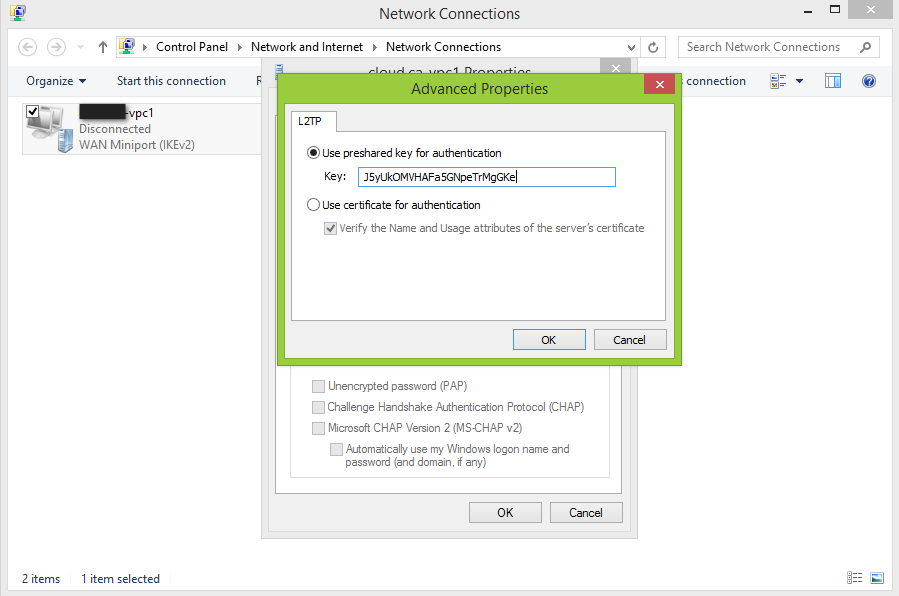
IPsec pre-shared key: Provide at the VPN activation.
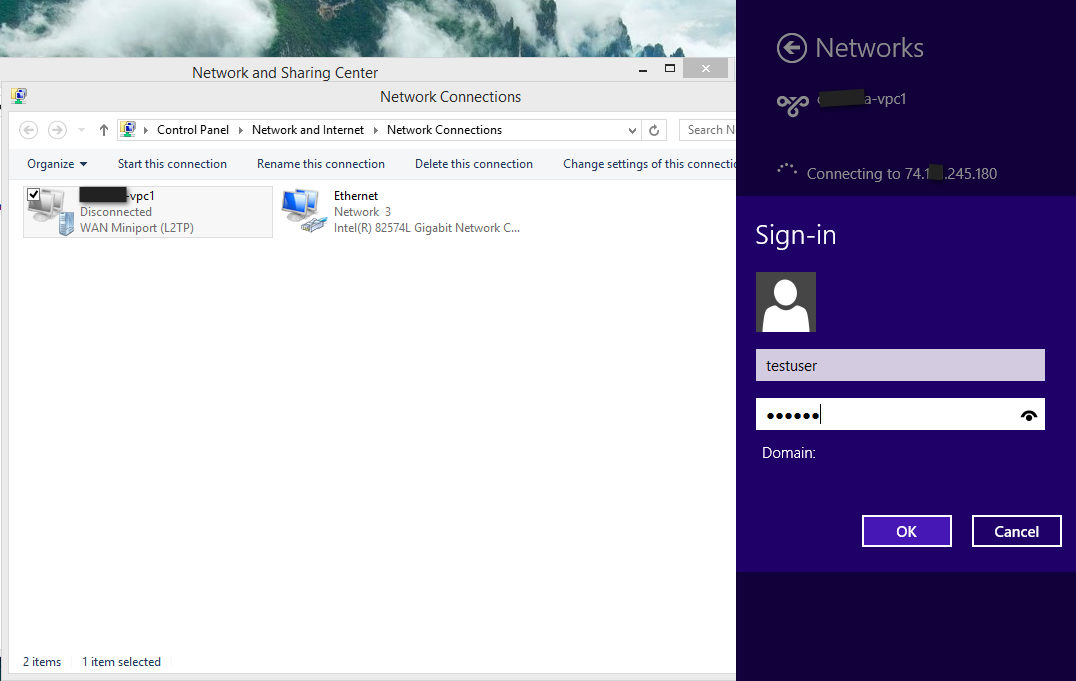
UsernameVPN account username.
PasswordVPN account password.
Mac OSX
Mac OSX provide native IPsec VPN client.
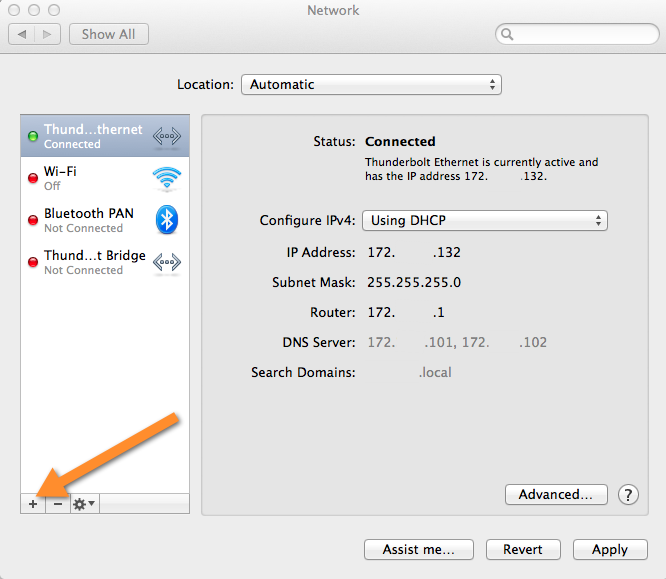
Into System Preferences -> Network
Click “+” button and add a VPN:
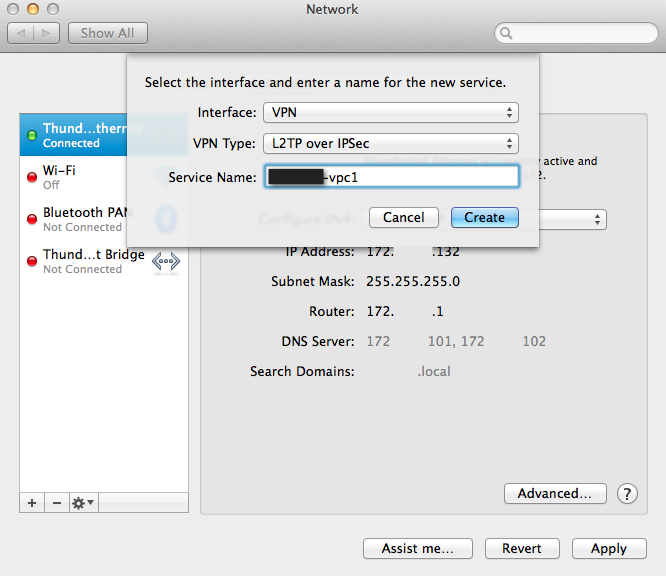
Interface: VPN
VPN Type: L2TP over IPSec
Service Name: (ex: test-vpc1)
Configure L2TP over IPsec
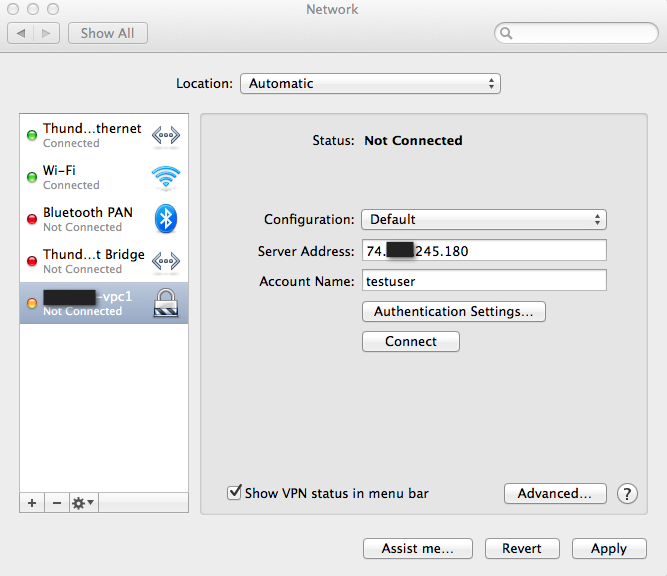
Inside Authentication Settings…
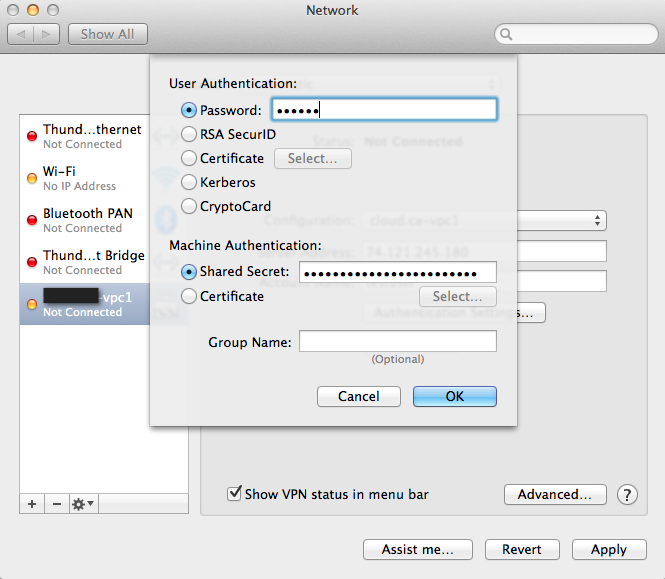
Connect into VPN
Click Apply to apply Network configuration changes.
Click Connect to initiate VPN connection.
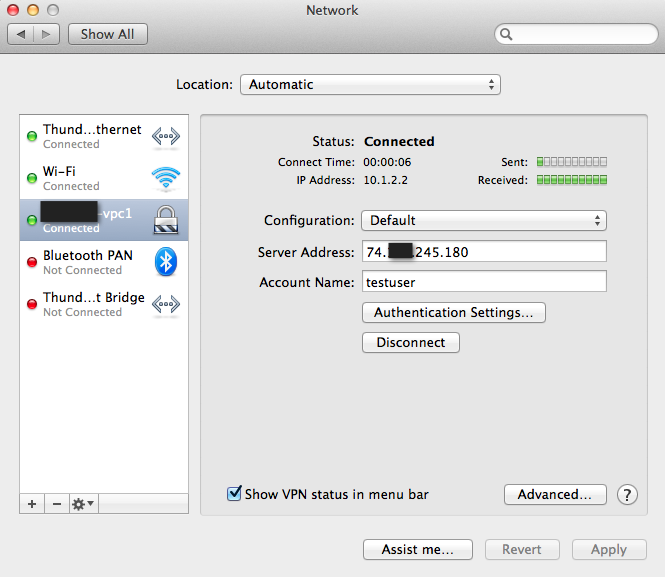
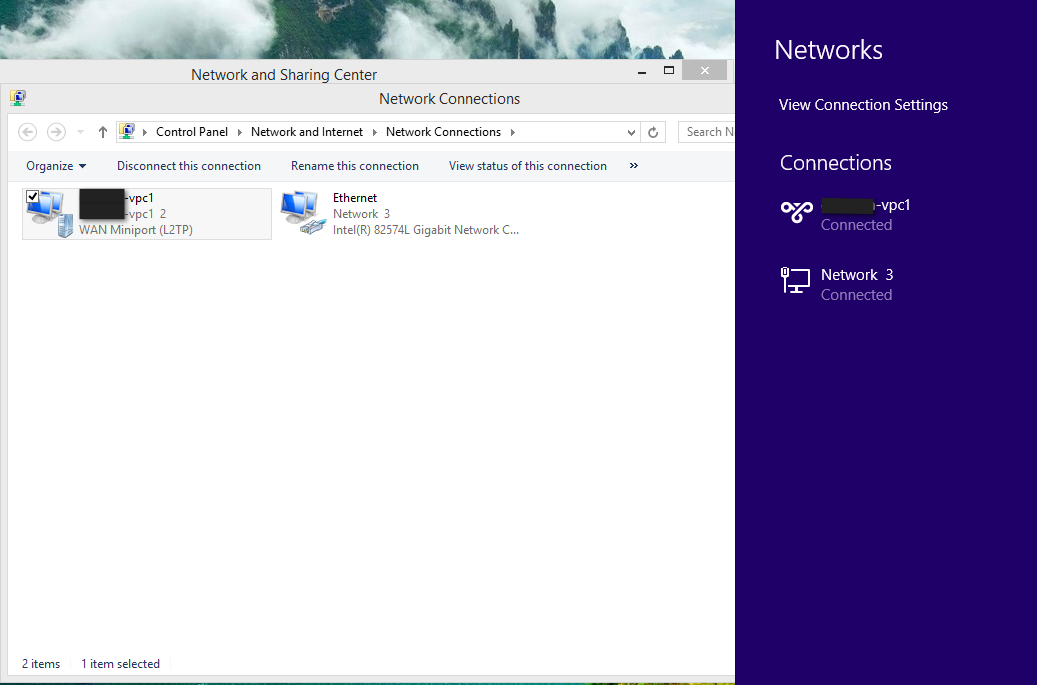
Microsoft Windows 8
Following instruction have been perform using Windows 8.1 using Native VPN client.
Create network VPN connection
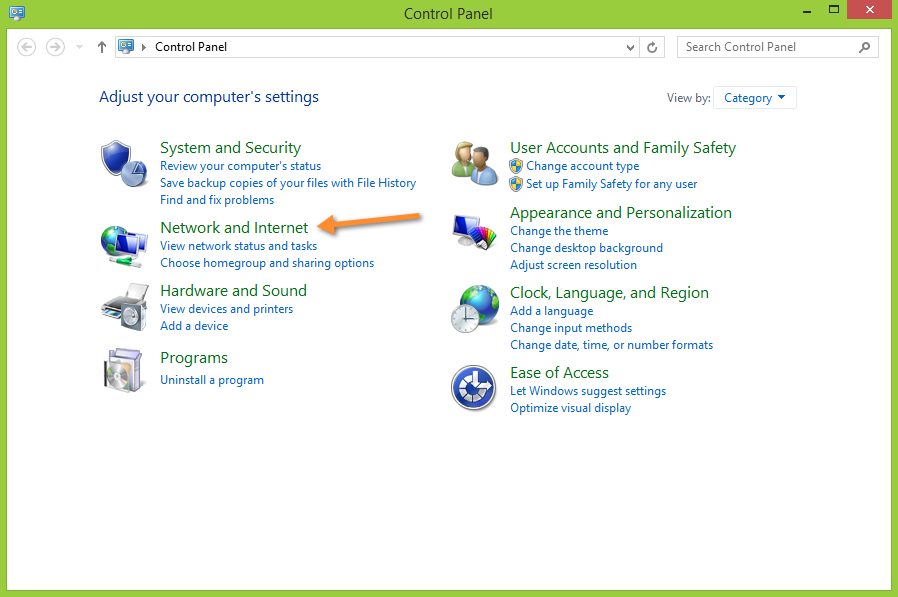
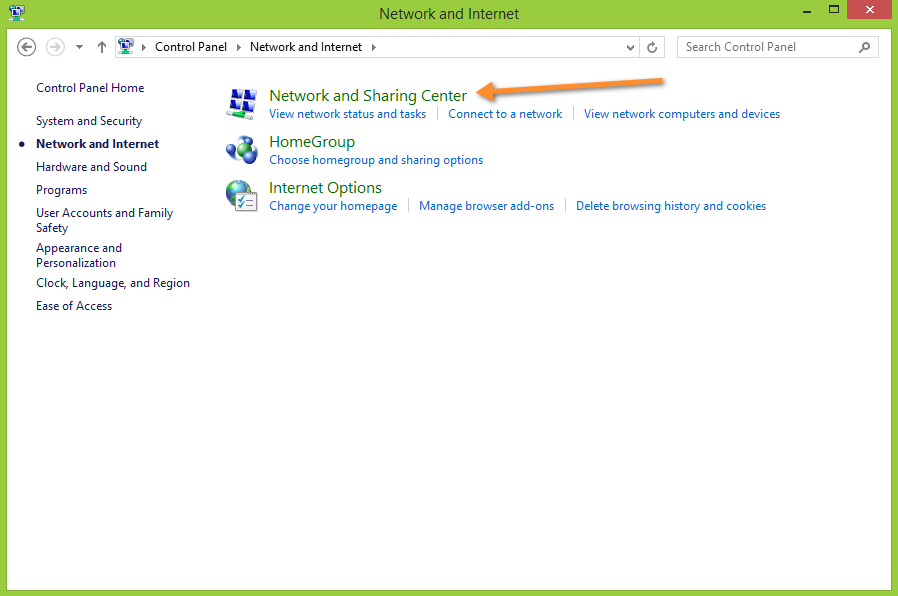
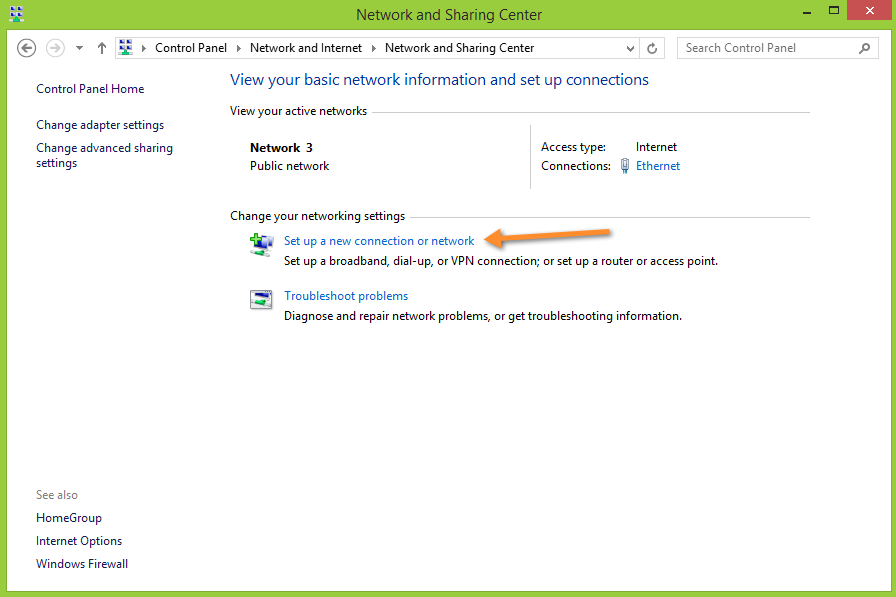
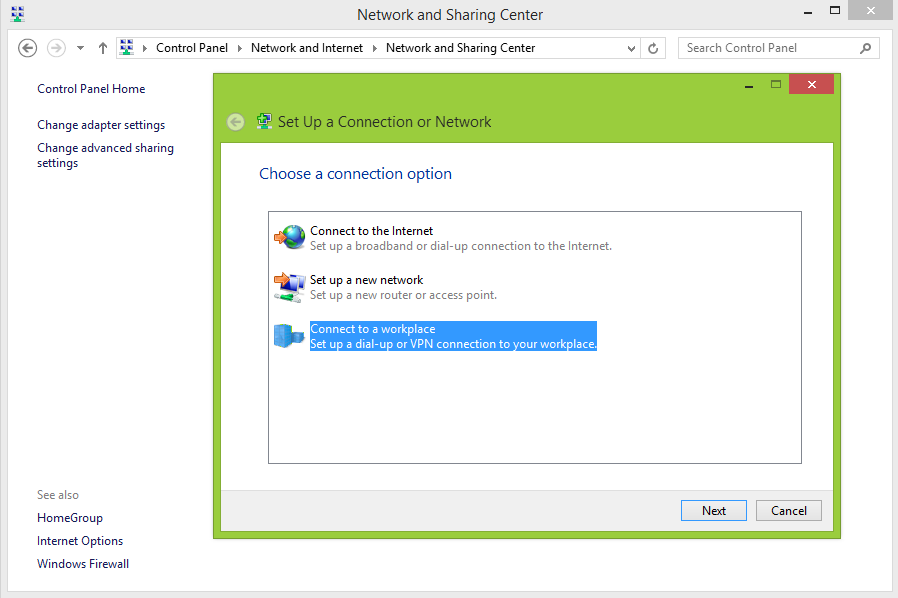
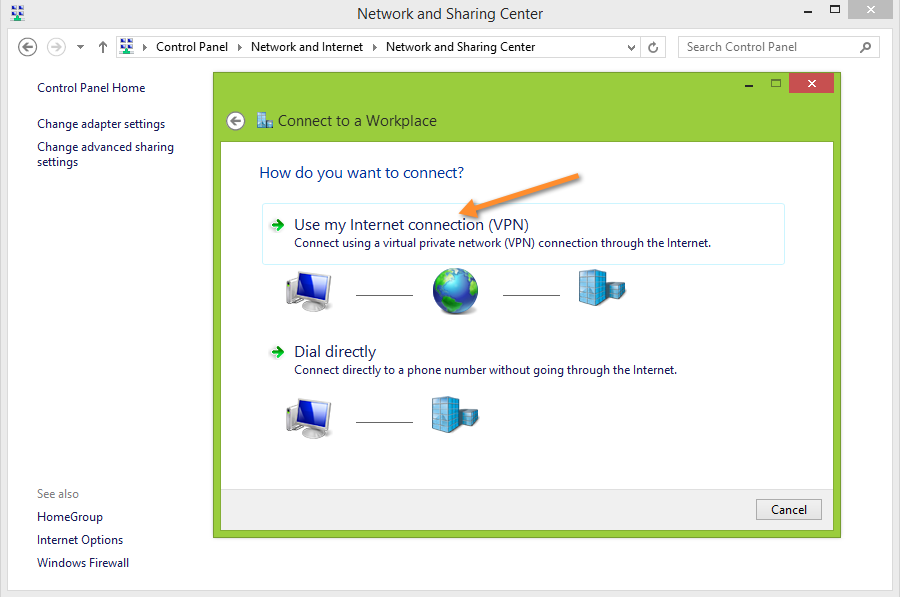
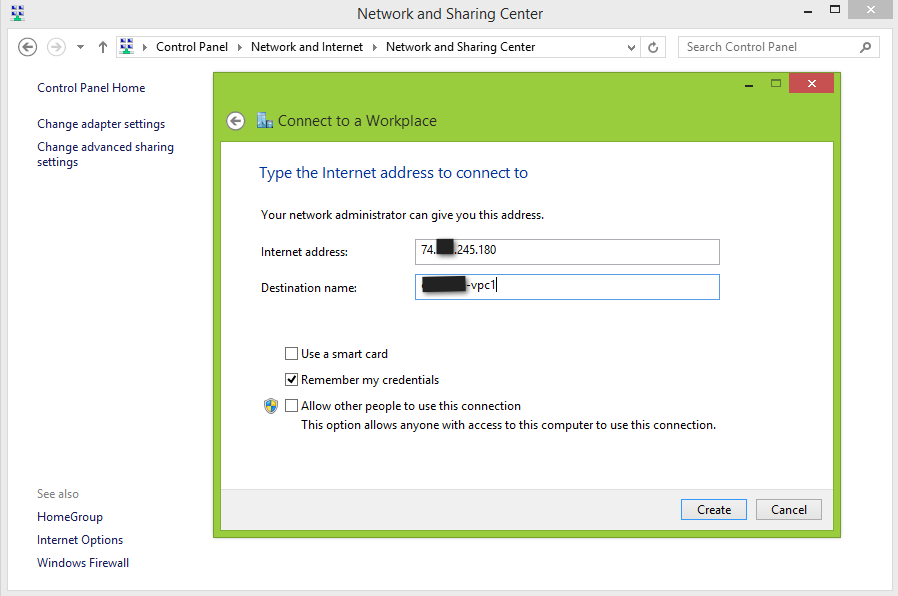
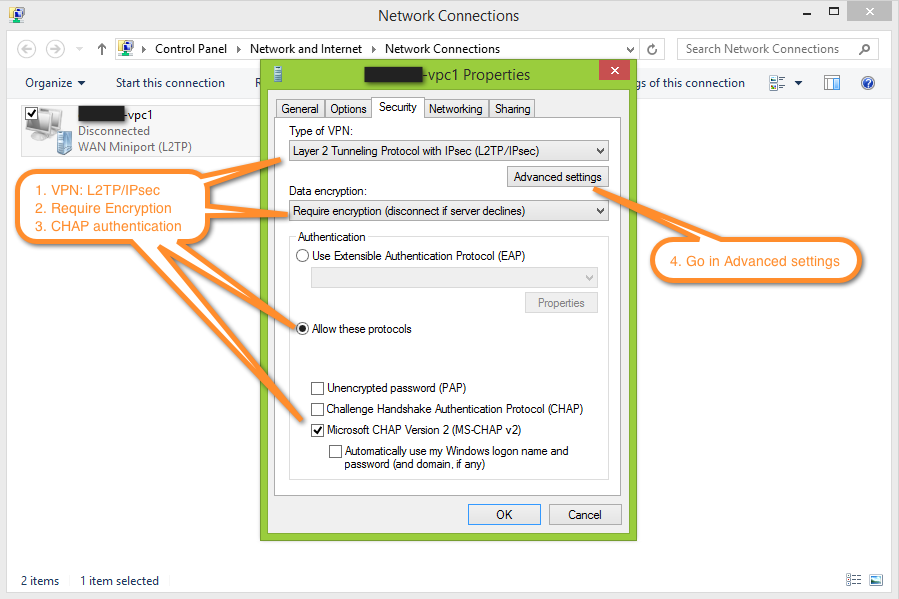
Configure VPN settings
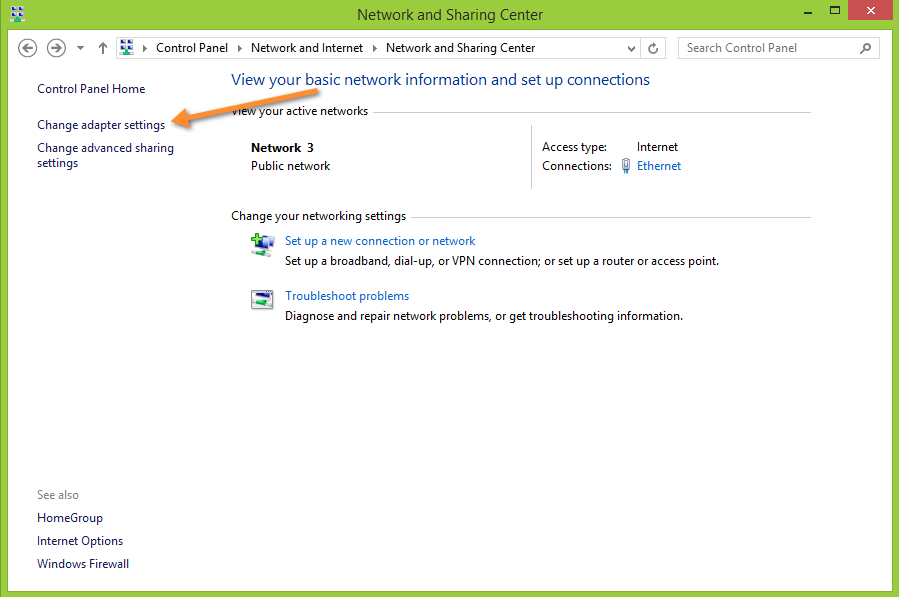
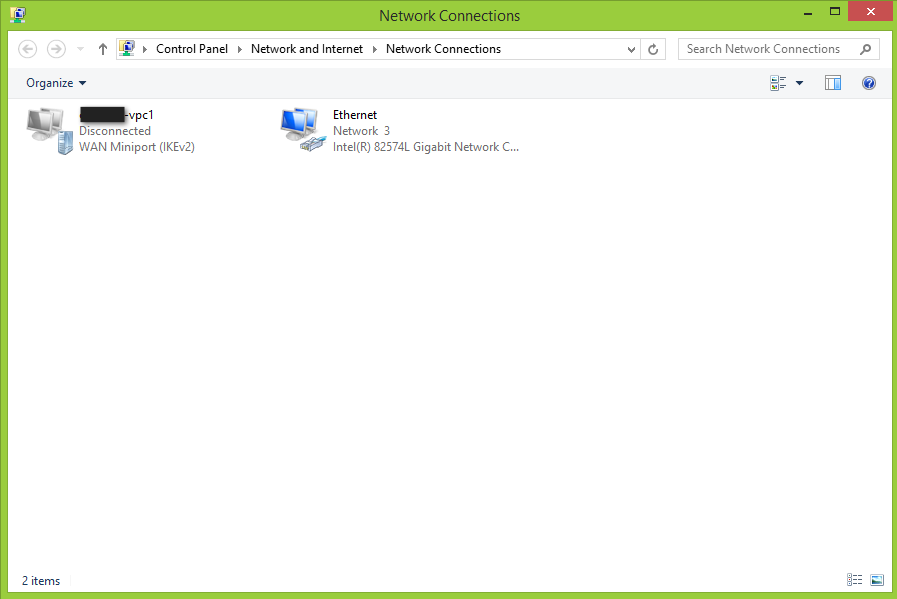
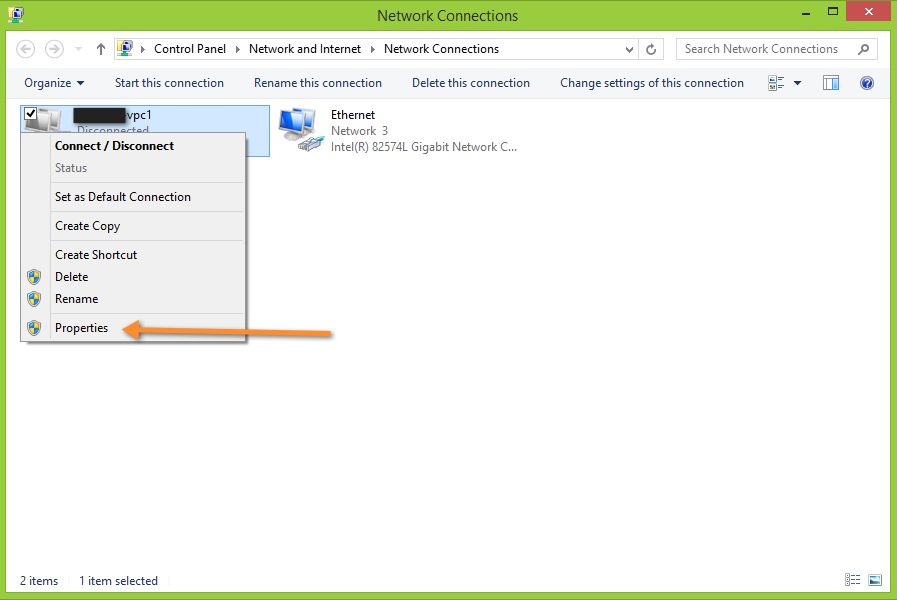
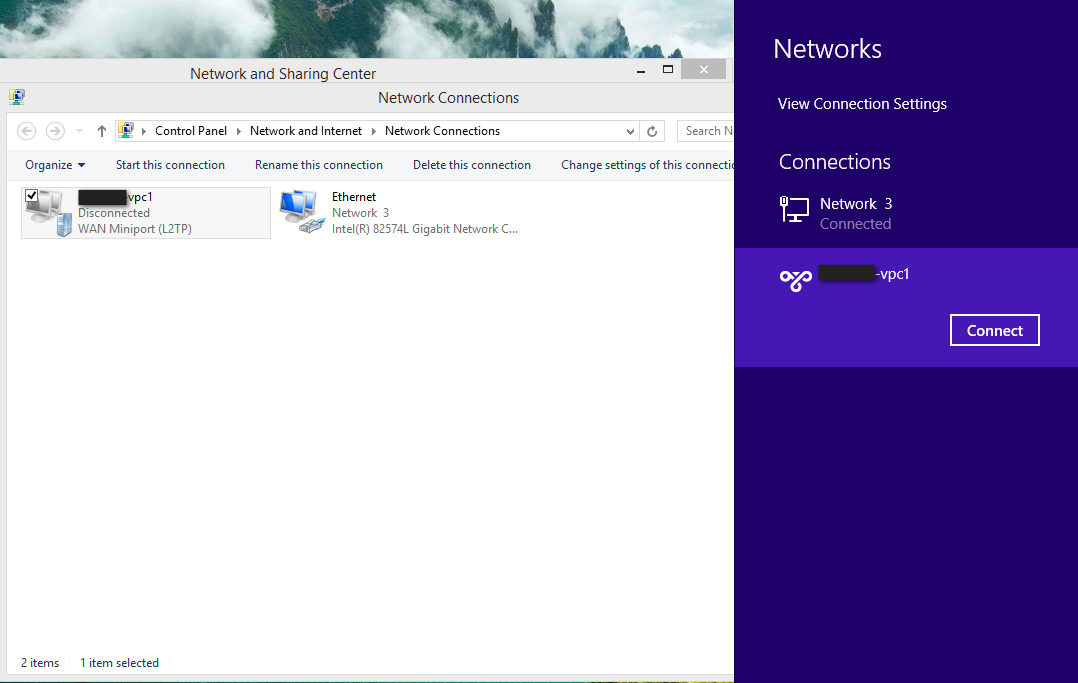
Initiate VPN connection
Ubuntu 22.04 LTS
Ubuntu 22.04 LTS does not provide native IPsec VPN client via Network Manager.
Install the following packages to enable L2TP over IPsec VPN support:
`
add-apt-repository universe
apt update
apt install network-manager-l2tp-gnome network-manager-l2tp strongswan xl2tpd
`
Restart Network Manager service to load the new plugins:
`
systemctl restart NetworkManager
`
Navigate to Settings -> Network
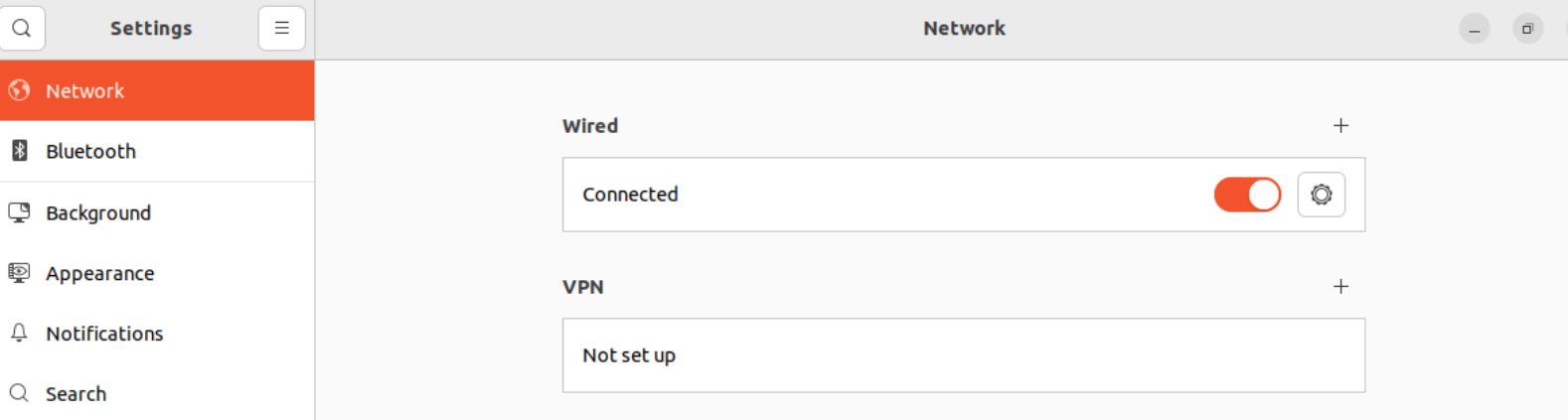
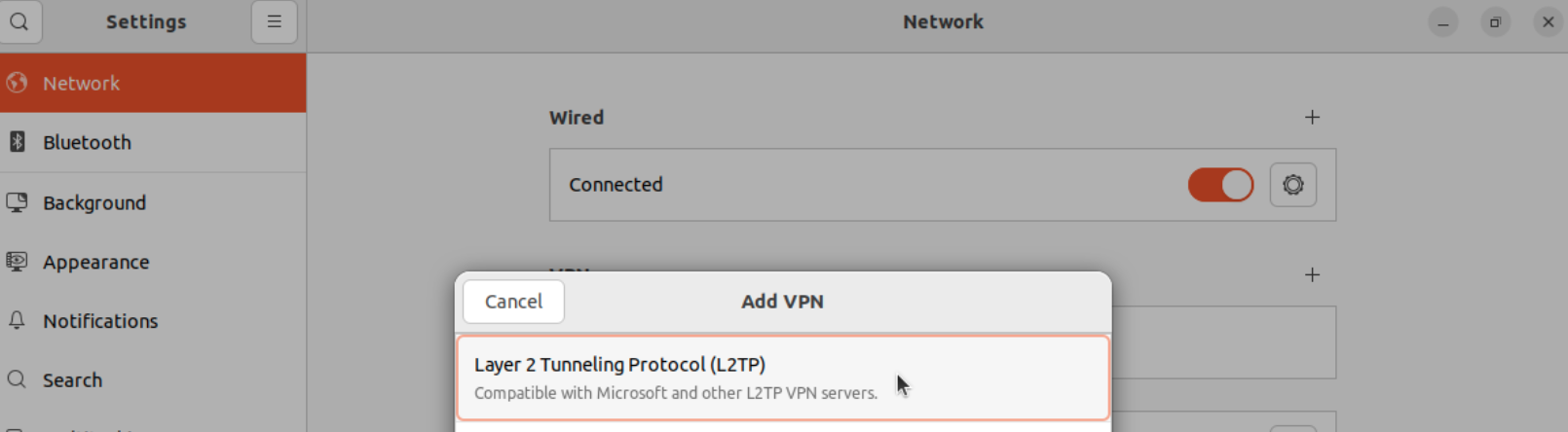
Click “+” button and add a select Layer 2 Tunneling Protocol (L2TP):
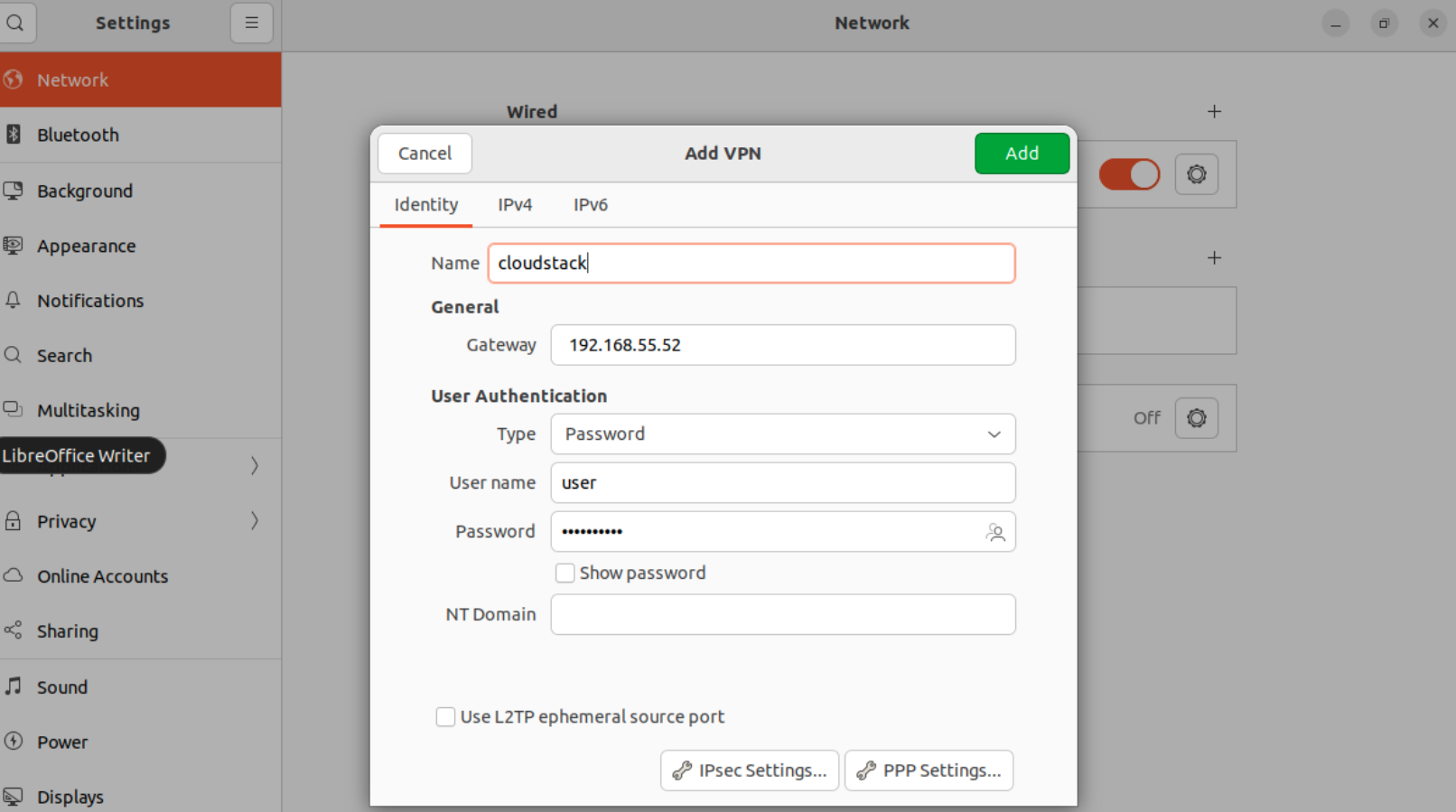
Provide the VPN connection information:
Click on IpSec Settings and configure the following:
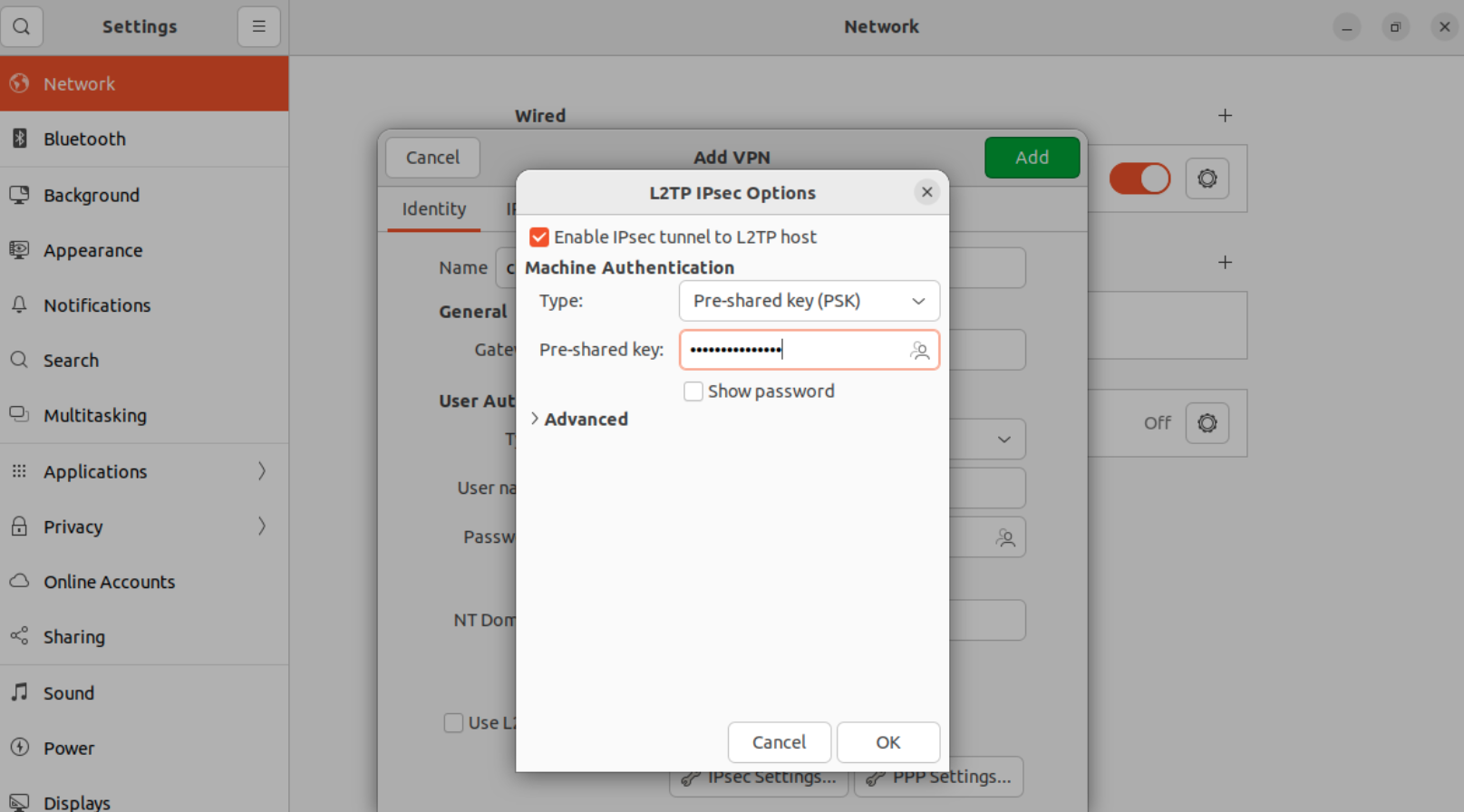
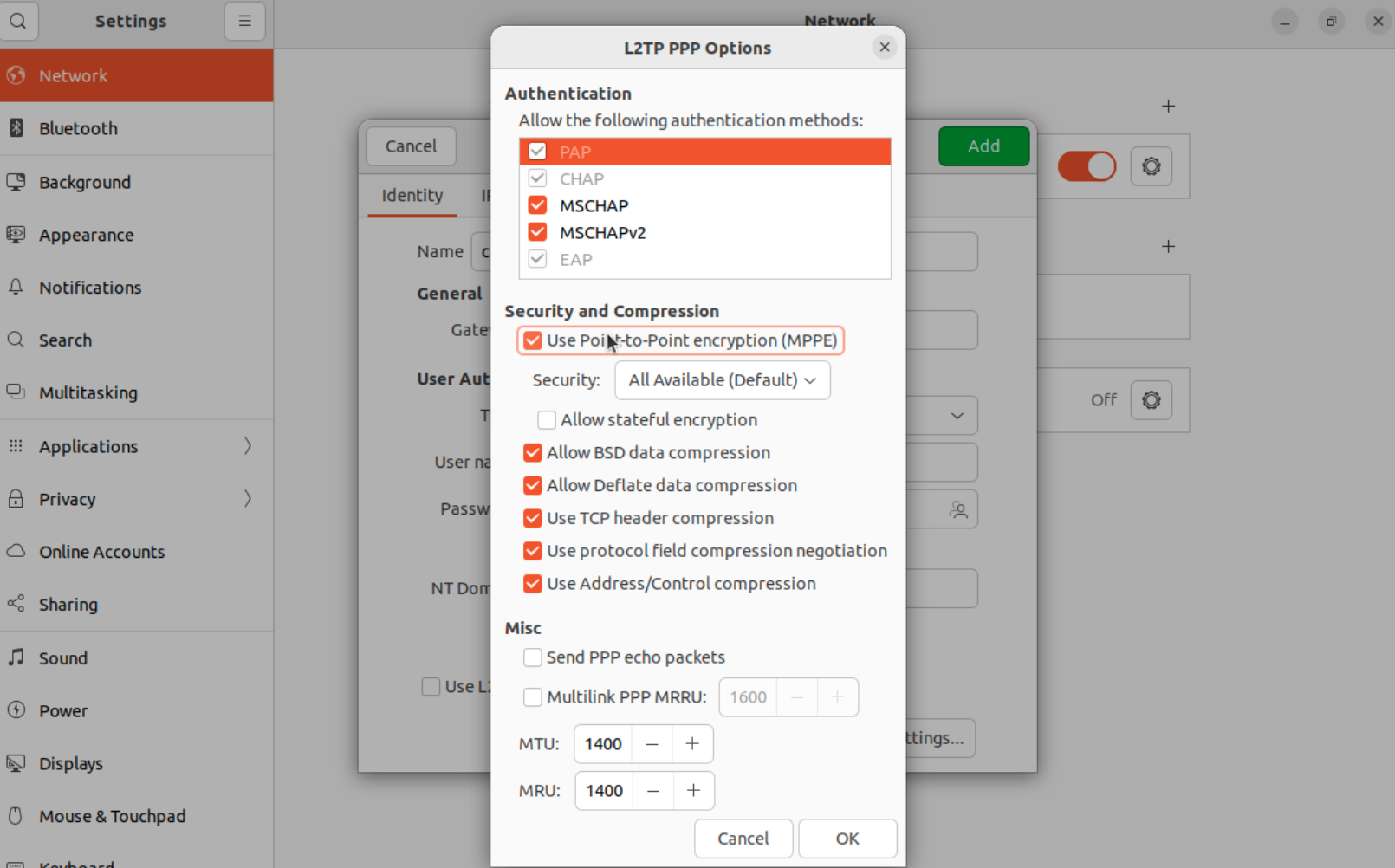
Click on PPP Settings and select use MPPE encryption:
Connect into VPN
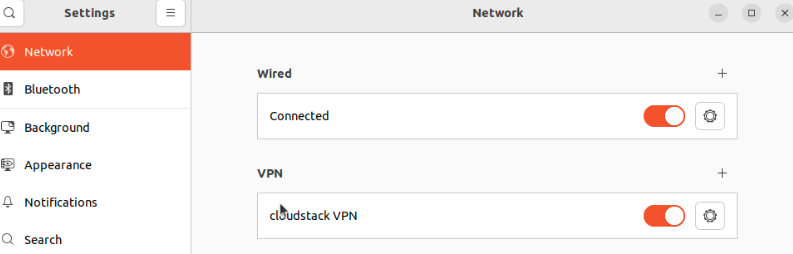
Enable the cloudstack vpn connection.
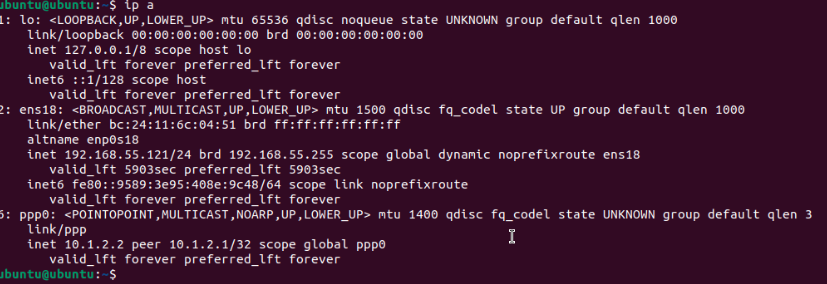
verify the connection by checking the ip address assigned on the ppp0 interface